
TrackZapDJ, screen by screen
Here is the full journey through the app, from opening your Rekordbox collection to rolling back a cleanup. The screenshots come from a real collection of more than 74,000 tracks; file paths and a few personal details have been blurred. Click a screenshot to view it full size.
The screenshots show the French interface: for now, TrackZapDJ is only available in French. The app itself will be available in English at the official launch.
Free or paid? Steps 1 to 4 (scan, review, preview and simulation) are part of the free version. Applying the cleanup (step 5) needs a €4.99 licence (buy). Rolling back (step 6) is always free, even without a licence.
Open your collection
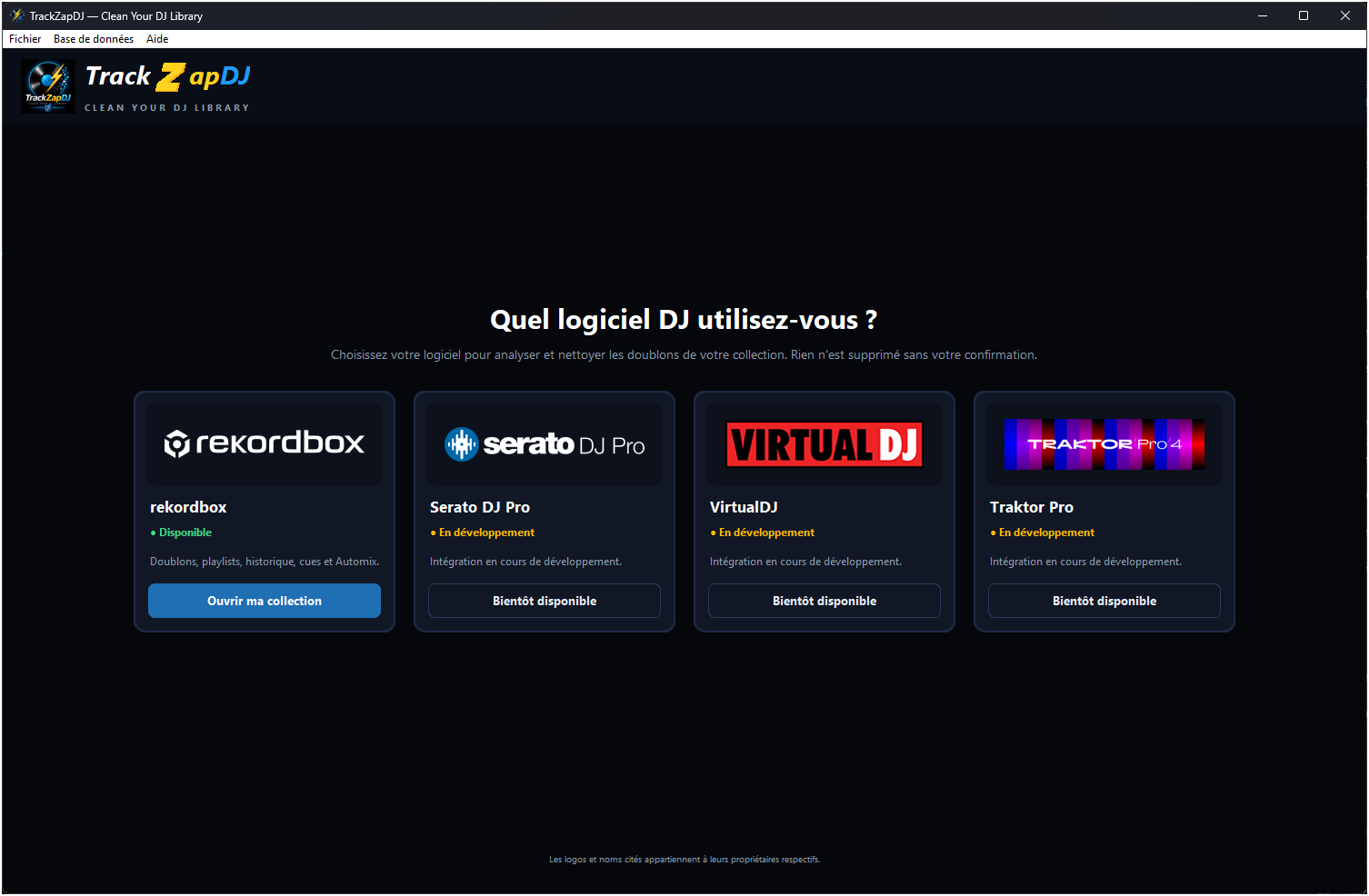
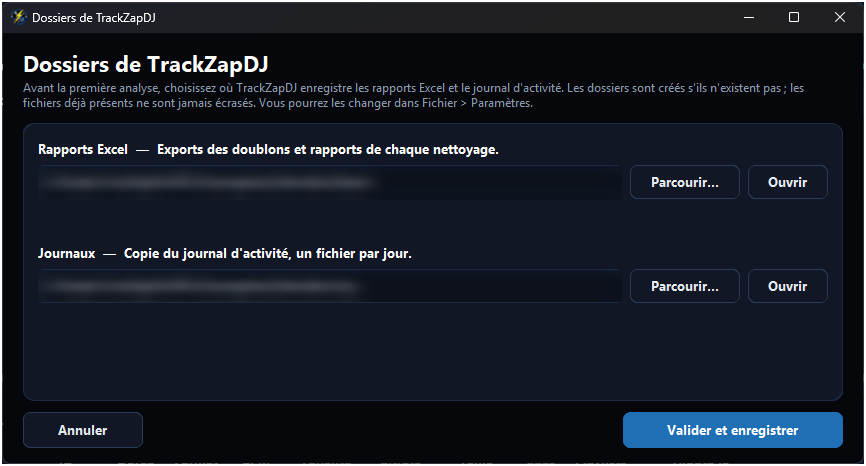
When the app starts, pick your DJ software. Rekordbox is available; Serato DJ Pro, VirtualDJ and Traktor Pro are in development. Before the first scan, TrackZapDJ asks where to save the Excel reports and the activity log.
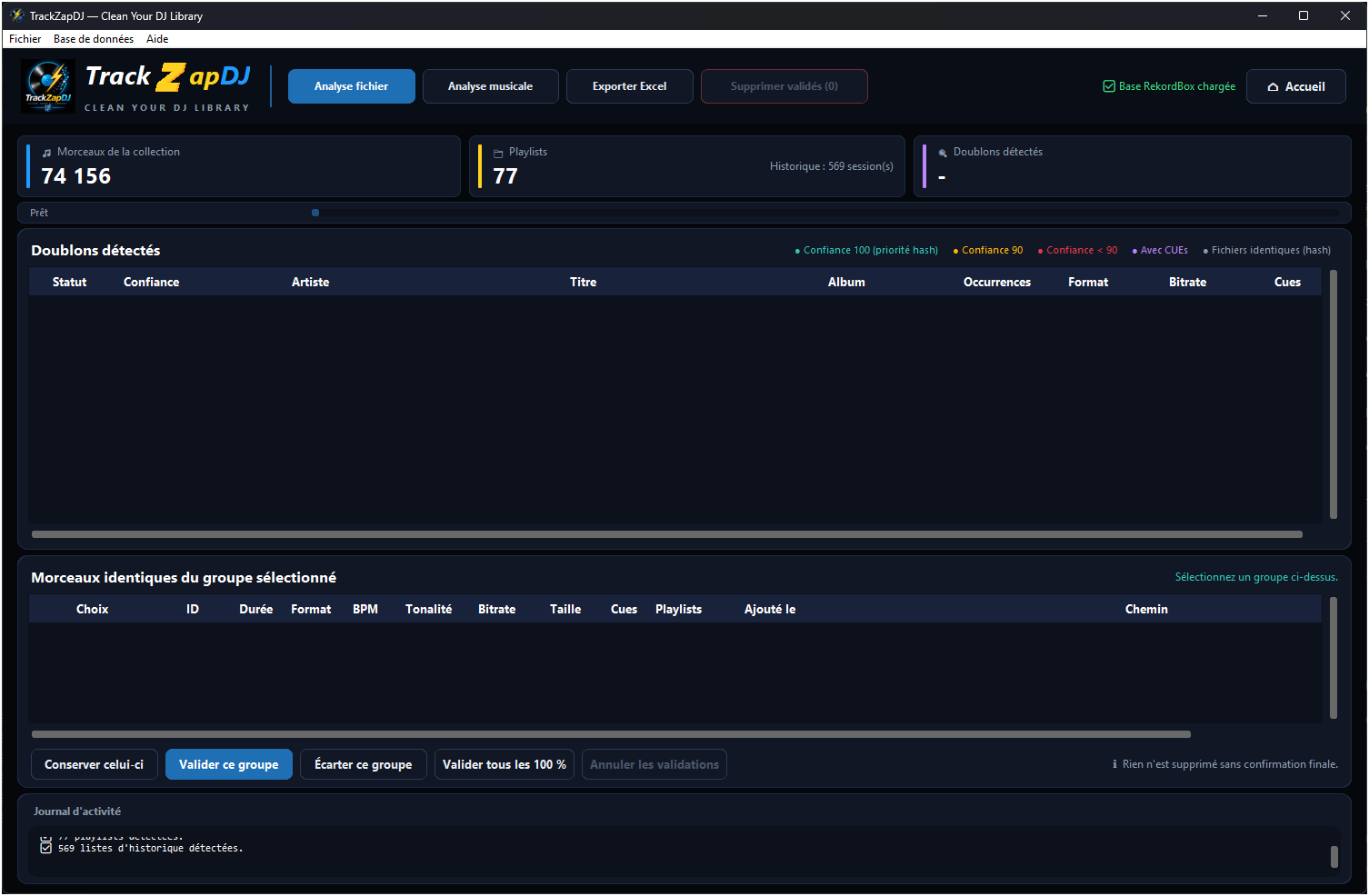
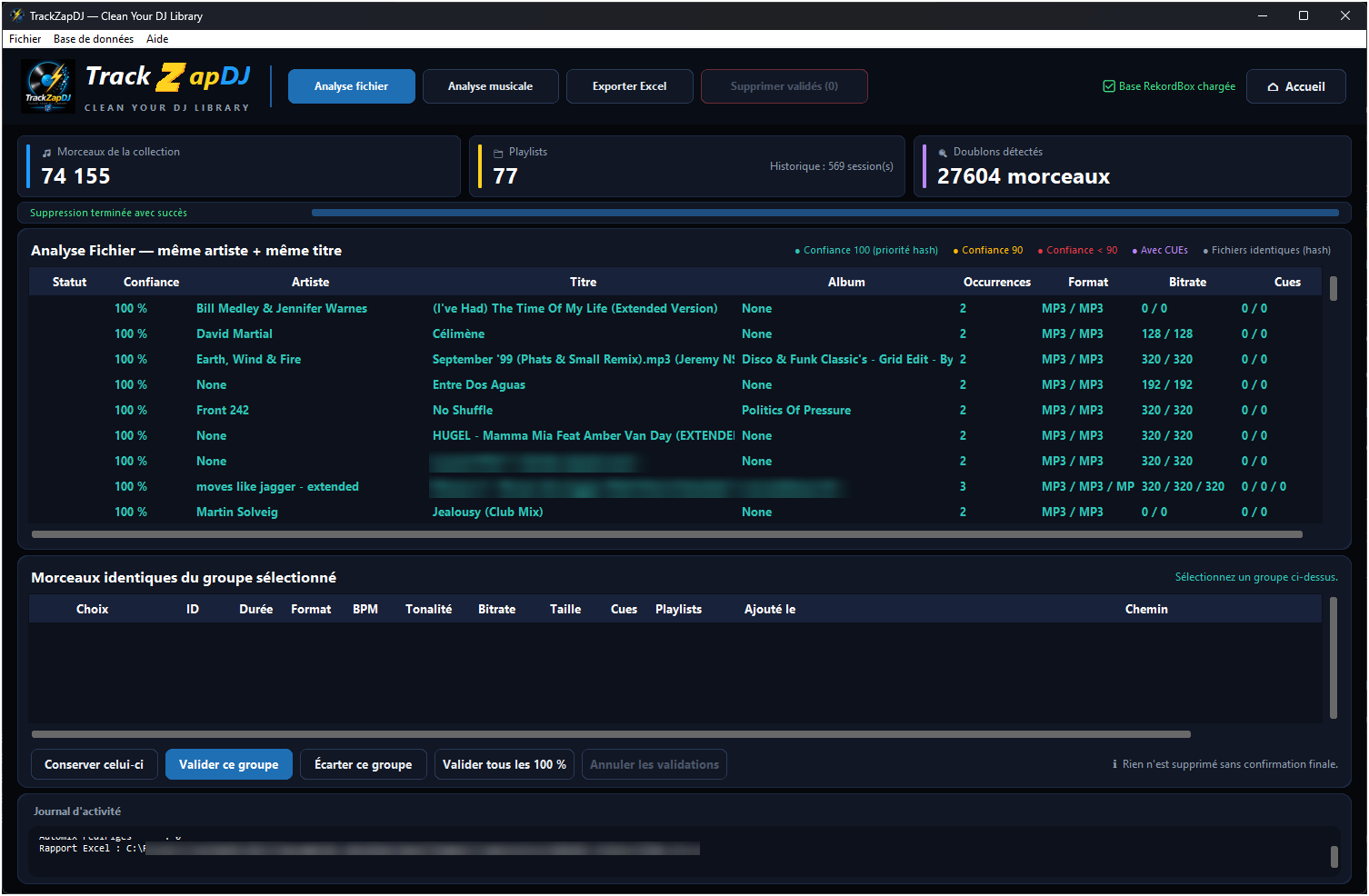
Once the collection is loaded, you can see at a glance how many tracks, playlists and history sessions it contains.
Run the scan
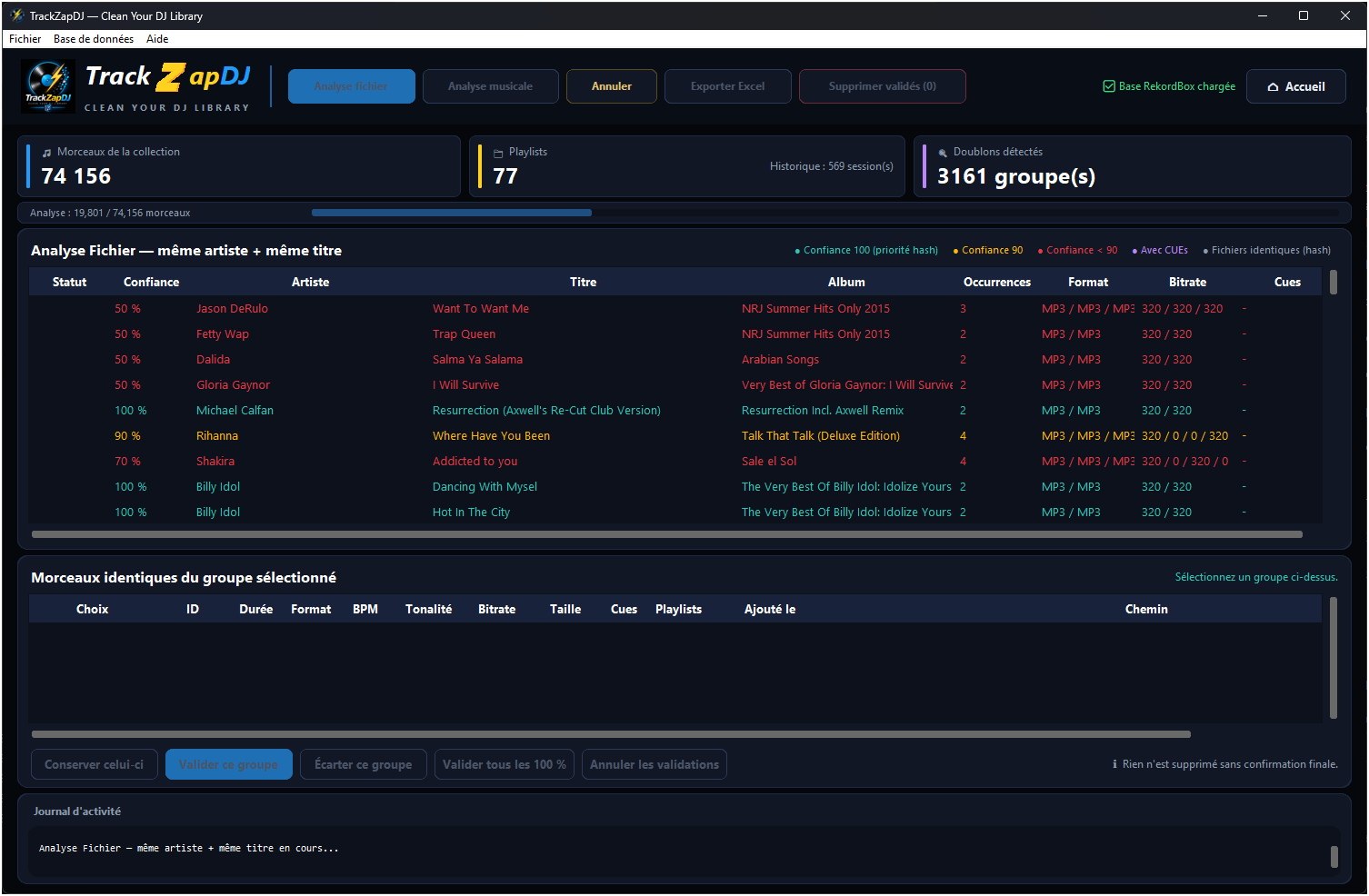
“Analyse fichier” (file scan) groups tracks with the same artist and title; “Analyse musicale” (musical scan) relies on key, BPM and duration. File contents are then compared (hash) to spot strictly identical copies. Progress is shown live and the scan can be cancelled at any time.
Each group gets a colour-coded confidence level. “Exporter Excel” saves the whole analysis to an Excel file.
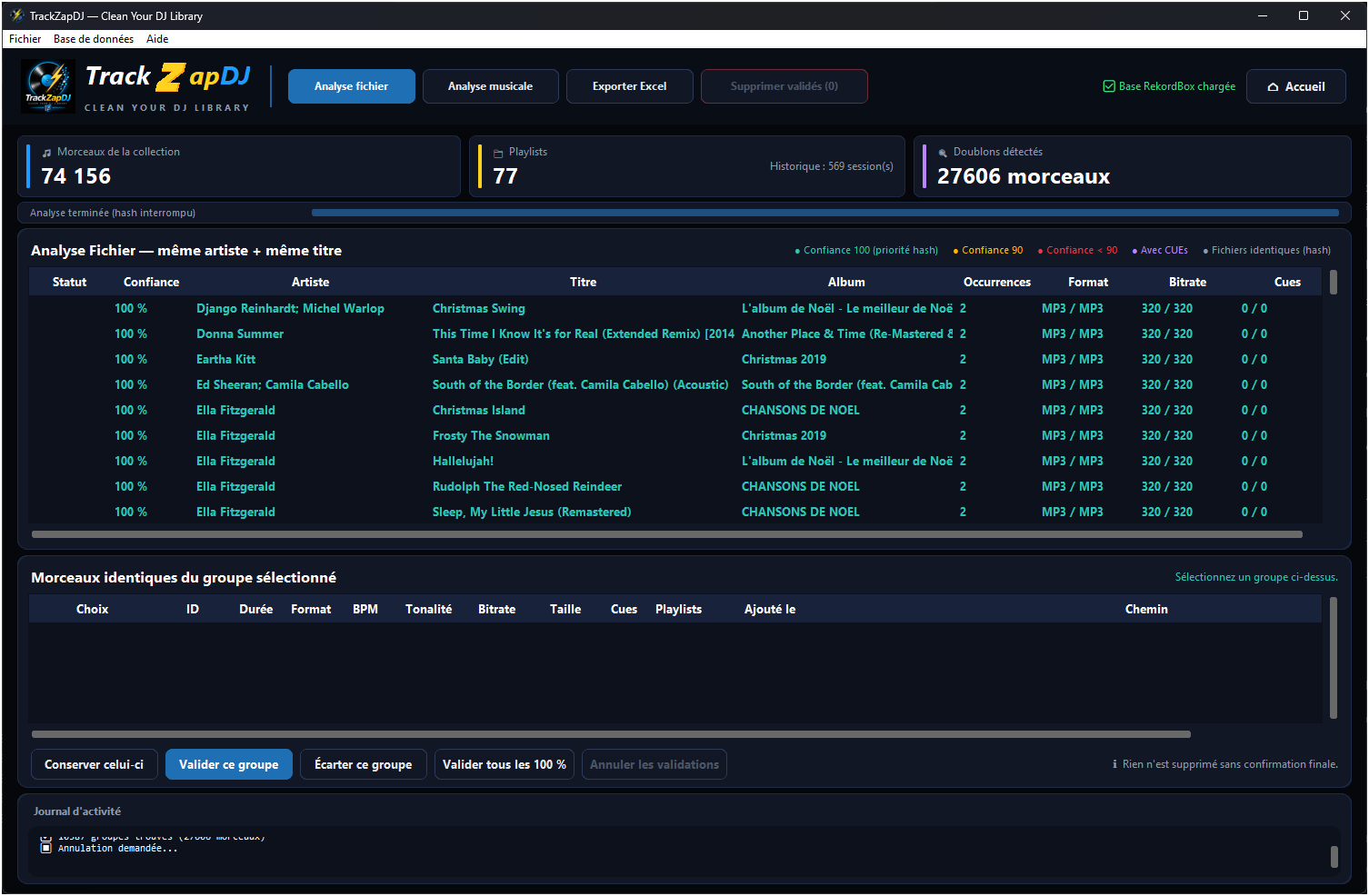
Review each group
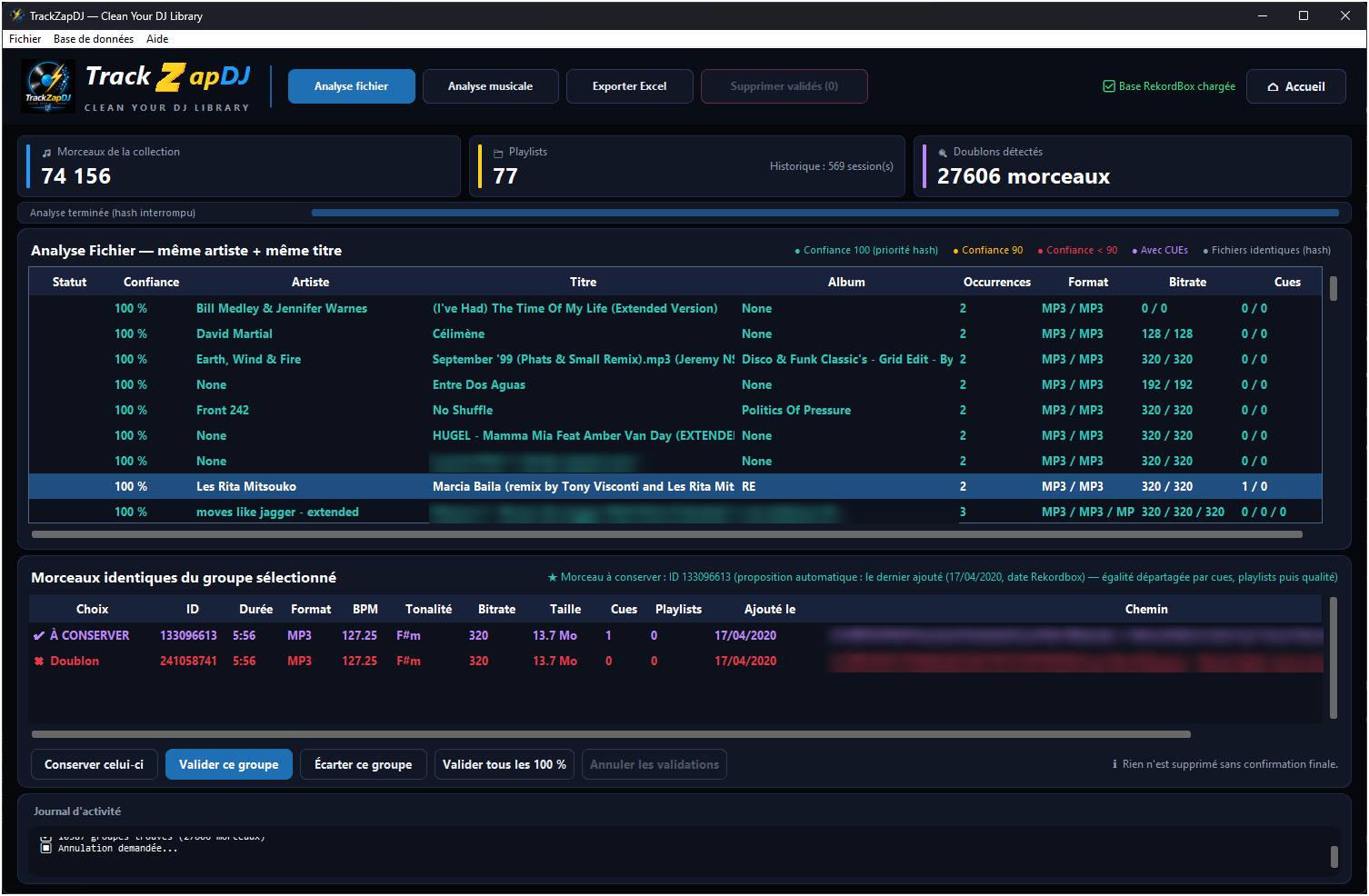
Select a group to see its tracks in detail (duration, format, BPM, key, bitrate, size, cues, playlists, date added, path). TrackZapDJ suggests which track to keep: by default, the most recently added one; in case of a tie, it decides by cues, then playlists, then quality.
You have the final say: “Conserver celui-ci” (keep this one) to pick another track, “Valider ce groupe” (approve this group), “Écarter ce groupe” (leave this group out), or “Valider tous les 100 %” (approve all 100% groups) at once. Nothing is deleted without a final confirmation.
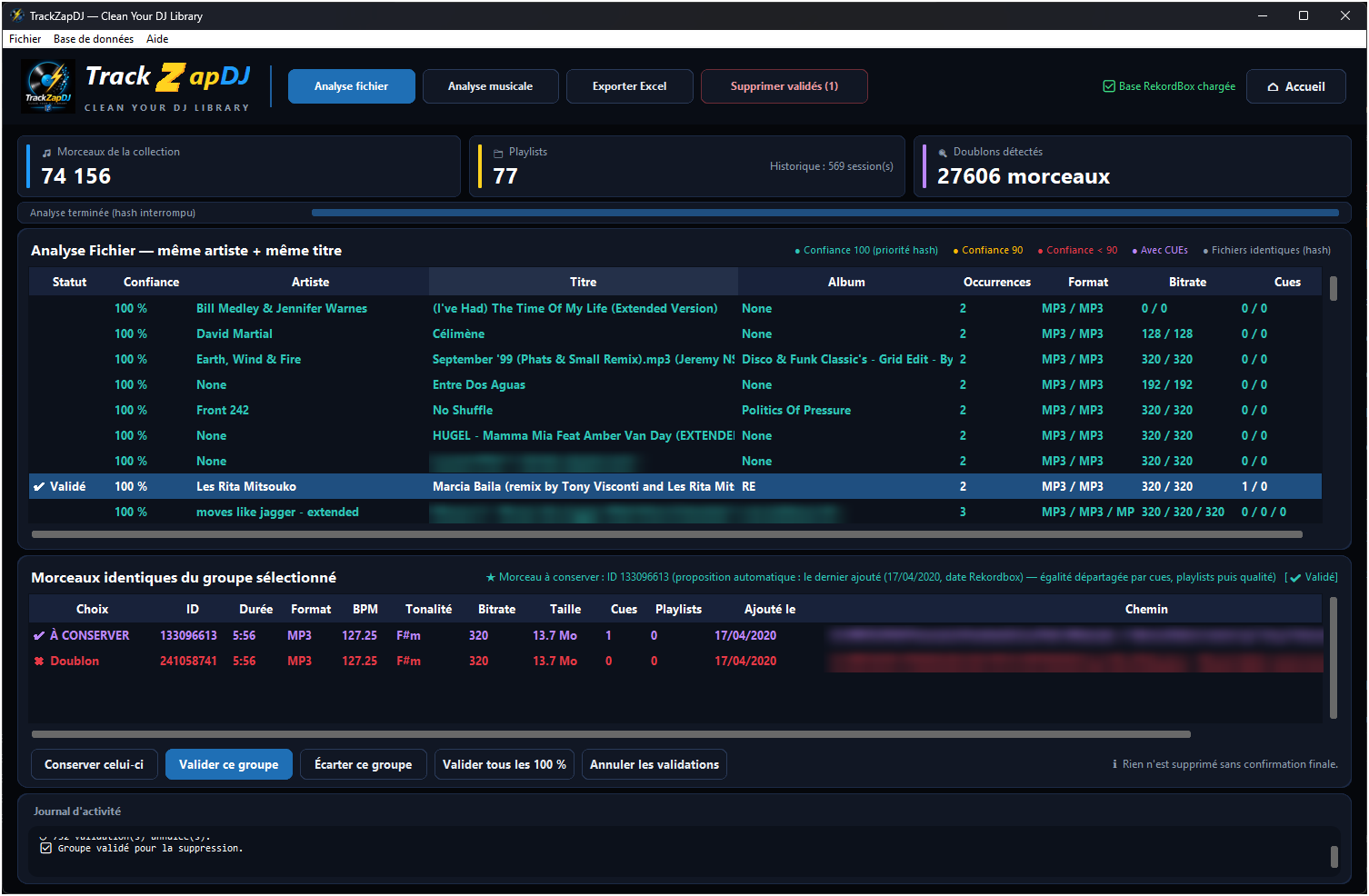
Preview and simulate
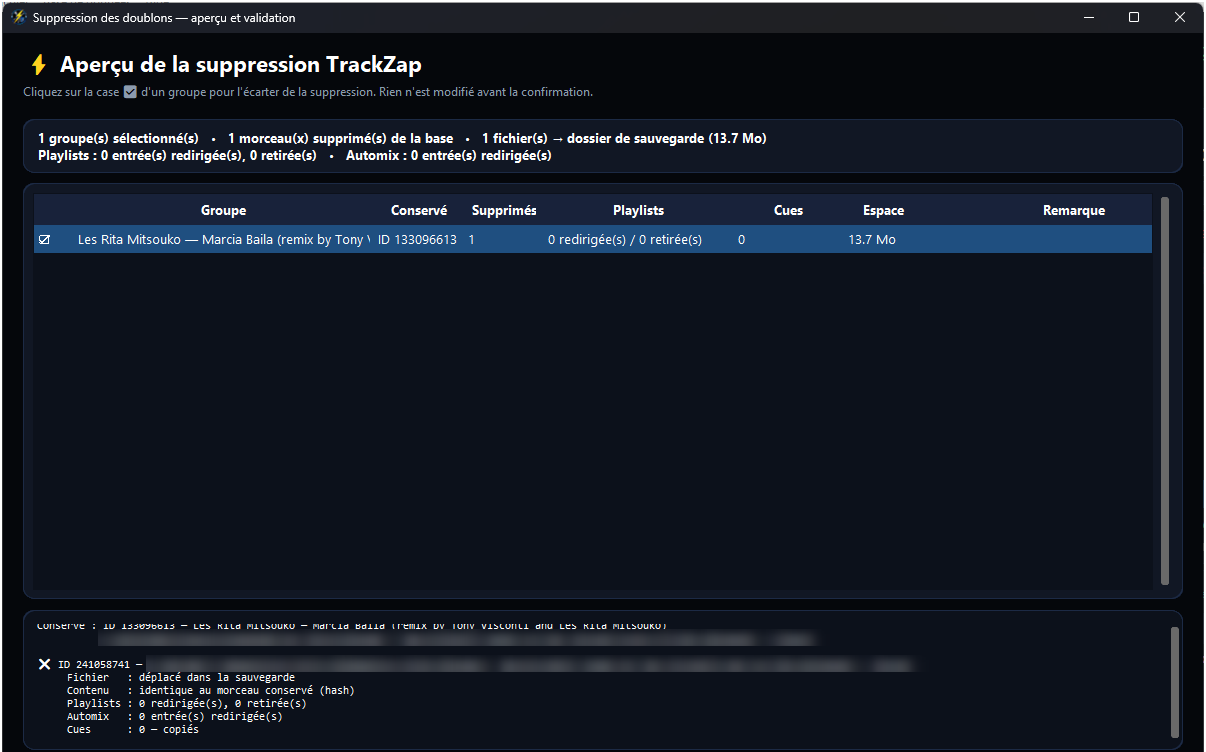
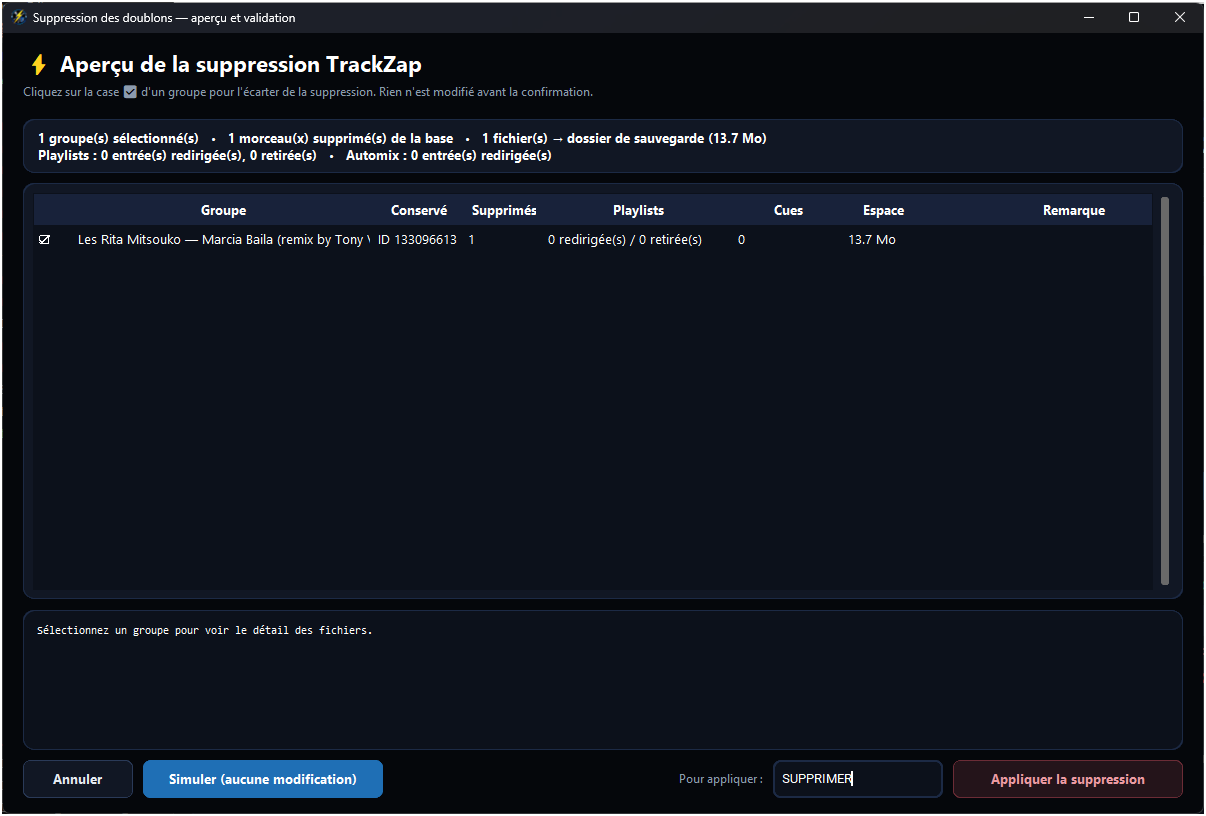
“Supprimer validés” (delete approved) first opens a preview: tracks removed from the database, files moved to the backup folder, space freed, playlist and Automix entries redirected. The detail for each file shows whether it is identical to the kept track. You can still untick a group to leave it out.
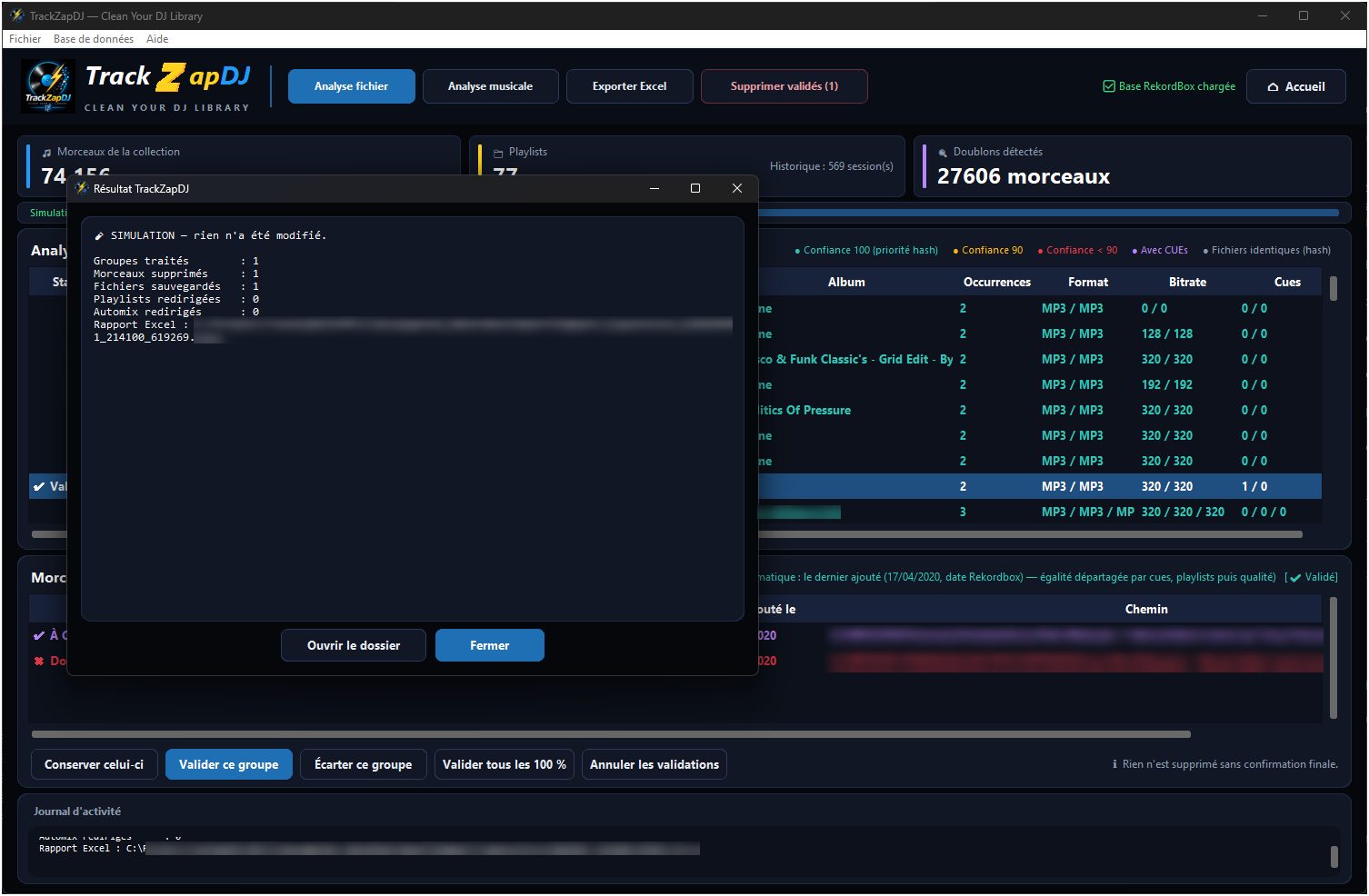
“Simuler (aucune modification)” (simulate, no changes) produces the full result and an Excel report without touching anything.
The free version goes this far: preview and simulation are available, applying the cleanup is not.
Apply the cleanup
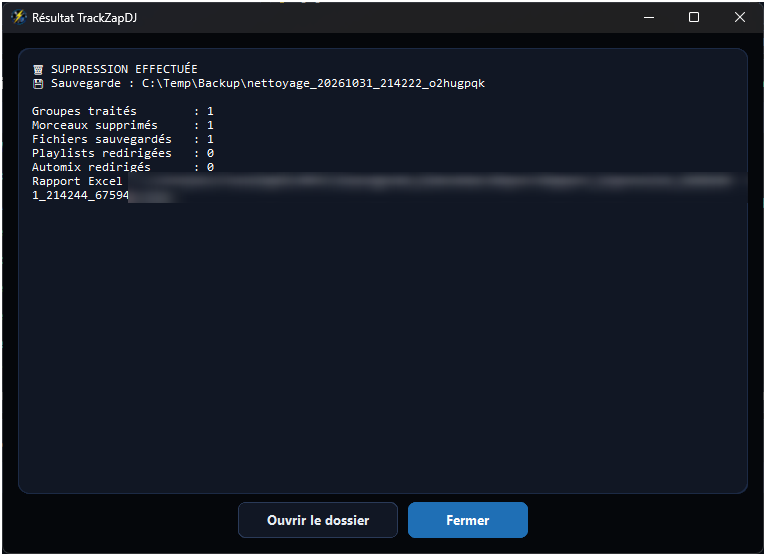
To apply it, type “SUPPRIMER” (delete) and confirm: having to type it prevents accidental clicks. TrackZapDJ first backs up your database, then removes the duplicates, redirects playlists, history and Automix to the kept track, and moves the removed files to the backup folder. An Excel report sums up the operation.
Roll back
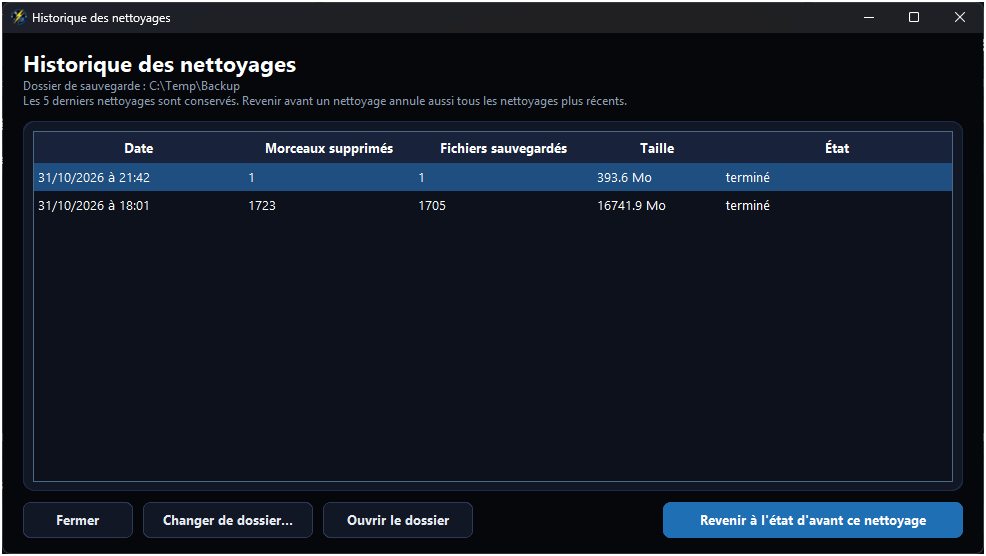
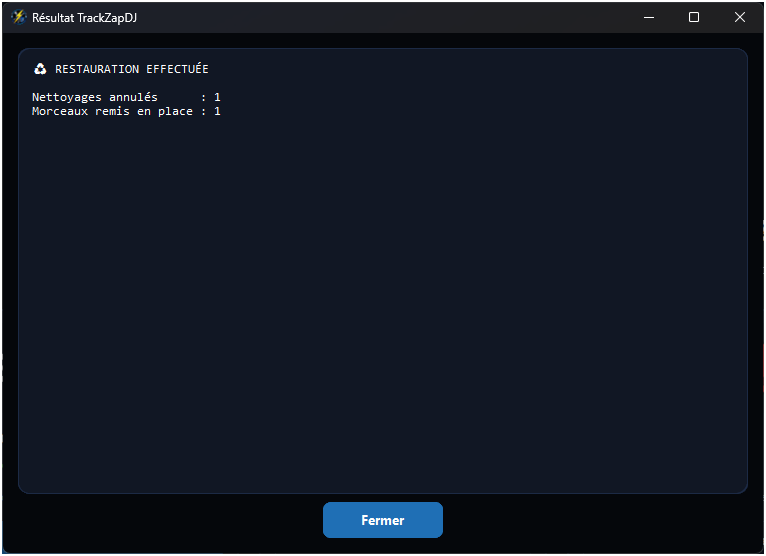
The cleanup history keeps the last 5 cleanups. Pick one and go back to the state before it: the database and the files return to their place.
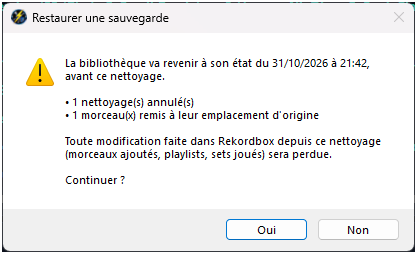
Rolling back a cleanup also cancels any more recent ones, and whatever you did in Rekordbox since then (tracks added, playlists, sets played) is lost. TrackZapDJ reminds you of this before going ahead.
Ready to zap your duplicates?
Start with the free version: scan, review and simulate, without changing anything.